

Download TrueSafe Personal Edition – backup, data protection, secure storage, file backup, PC backup, set-and-forget, remote backup, online backup, automated backup, cloud backup
Overview
TrueSafe Personal Edition is a productivity-focused software designed to simplify the process of safeguarding digital data on Windows systems. Targeted at individuals seeking a reliable and low-effort method to protect their personal files, this application addresses common challenges such as accidental deletion, hardware failure, and data loss due to system crashes. By offering automated, continuous backup functionality, TrueSafe Personal Edition helps users maintain consistent data integrity without requiring technical expertise or ongoing supervision. The app’s core value lies in its "set-and-forget" philosophy—once configured, the software operates silently in the background, ensuring that critical files are backed up without manual input. This makes it ideal for non-technical users, remote workers, and anyone managing sensitive personal or professional documents. While the developer, TrueSafe Software, is not further detailed in available information, the application’s focus on ease of use and security suggests a dedicated approach to user-centric data protection. Real-world use cases include backing up family photos, financial records, personal documents, and project files across multiple devices. In the broader software ecosystem, TrueSafe fills a niche for lightweight, automated backup tools that prioritize simplicity without compromising essential features like remote access and secure storage. Its integration of local and online backup options enhances resilience, making it a practical tool for users who value both convenience and data safety.Key Features & Functionality
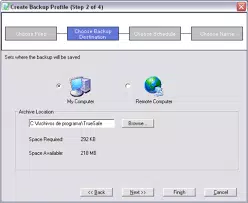
TrueSafe Personal Edition delivers a suite of features designed to streamline data protection with minimal user effort. The primary feature, “set-and-forget” operation, enables automatic, continuous backups after initial configuration. Users can define which files, folders, or entire drives to include, and the software will execute backups according to a customizable schedule, eliminating the risk of human error or oversight. Secure online storage is a key differentiator, allowing users to store backup copies in remote, encrypted servers. This safeguards data against local disasters such as fire, theft, or drive failure. The remote backup capability extends beyond cloud storage by enabling users to back up files from one PC to another located in a different physical location—ideal for home-office setups or multi-location personal computing. The app supports versatile backup destinations, including local drives, network shares, and portable storage devices. This flexibility ensures users can choose the most suitable storage medium based on their needs and available infrastructure. The interface is compact and intuitive, displaying active backup profiles and offering quick access to essential functions via toolbar icons. Each feature serves a practical purpose: automated scheduling reduces user burden, online storage enhances recovery options, and remote backup increases data redundancy. These elements collectively create a resilient backup workflow that maintains data accessibility and integrity with minimal intervention.- Automated, continuous backup with customizable scheduling
- Secure online storage for remote data protection
- Remote backup over the Internet between devices
- Support for selective, folder, and full disk backups
- Flexible backup destinations: local, network, portable drives
- Compact, intuitive interface for easy management
Interface, UX & Performance
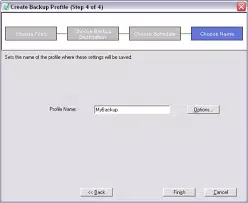
TrueSafe Personal Edition presents a clean, minimal interface designed for ease of navigation and quick access to core functions. The main window displays active backup profiles and includes toolbar icons for initiating, pausing, or reviewing backups. This layout prioritizes clarity and reduces cognitive load, making it accessible even to users with limited technical experience. Navigation is straightforward, with logical grouping of settings and options. Users can adjust backup schedules, select source and destination paths, and configure encryption preferences—all within a well-organized settings panel. The software maintains a low system footprint, which contributes to consistent performance during background operations. Although the developer did not list formal performance metrics, the application’s design suggests optimized resource usage. It runs efficiently in the background without significantly impacting system responsiveness, allowing users to continue working without interruptions. Stability appears to be a focus, as the “set-and-forget” model relies on consistent, uninterrupted operation. The user experience is further enhanced by the absence of intrusive notifications or complex workflows. Backup progress is indicated clearly, and error handling is handled gracefully. While no specific information was provided about compatibility across device types or performance under heavy load, the app’s lightweight nature and focus on automation imply broad usability across standard Windows configurations.Platform Compatibility & Technical Requirements
TrueSafe Personal Edition is designed for the Windows operating system. The current version is 1.0.2, with a file size of 15.6 MB, indicating a lightweight installation. The application is compatible with Windows platforms, though specific OS versions were not listed by the developer. The developer did not specify minimum OS requirements, nor did they provide details on hardware specifications or system memory needs. As such, users should ensure their system meets standard Windows requirements for running productivity software. Compatibility with older or newer Windows versions cannot be confirmed without further documentation. The small file size suggests efficient coding and minimal resource demands, which may contribute to broad compatibility across various Windows devices, including laptops, desktops, and tablets running Windows. However, no information was provided about support for Windows Server, Windows on ARM, or other specialized environments.Pros and Cons
- Simple, intuitive interface ideal for non-technical users
- True “set-and-forget” automation reduces user burden
- Secure online storage enhances data resilience
- Remote backup capability across different locations
- Flexible backup destinations: local, network, portable drives
- Lightweight installation (15.6 MB) with minimal system impact
- Price point of $49.99 may be considered high for basic backup needs
- No publicly available information on supported Windows versions
- Developer details and support channels not disclosed
- Performance under heavy load or large-scale backups not documented
- Limited visibility into update frequency or long-term maintenance


